

VMLogin is a multi-login anti-detect browser that allows you to surf the Internet while maintaining your privacy and security. With VMlogin, it’s simple to establish entirely separate browsing profiles with isolated environments. This way, you can have lots of different profiles with unique cookies and cache. A profile of this type cannot be tracked or linked to other profiles that you have.
If you want each isolated VMlogin profile to appear as a real household user online, you can assign it a residential ip address using high-quality residential ip address from PrivateProxy. This gives each profile a clean, ISP-issued identity with the lowest fingerprinting and block rates.
The VMlogin browser can also be a good alternative to multiple computer setups. VMlogin is capable of creating distinct virtual profiles that can be used for any purpose. For example, you can manage several social media accounts at the same time on one computer. This feature can be useful for e-commerce, marketing, or HR tasks. More than this, the majority of basic tasks in VMlogin can be easily automated. Browsers can provide support for the Selenium webdriver or for other constructors for automation.
Anti-detect browser also has features that may come in handy for remote teams or establishing business processes. With VMlogin, you can share your user profiles and export your created functions and settings. All of your processes can be set up in one simple transfer environment.
Let’s see in what areas the VMlogin will be most useful. First of all, you can create several separate accounts for your ad campaigns or for your e-commerce tasks. This way, you can diversify any risks and always have a separate account to continue working.
In the same manner, you can use multi-account setup to check your ads in different regions or access regionally blocked content. This can also help in advertisement verification in the form of emulating regular user interactions with ads on different platforms and from different locations. Check if all the links and layouts work as you planned on all of your ads. For advertising audits, SEO checks, or any workflow requiring interaction with search engines, VMlogin profiles work especially well with google proxies designed for stable, clean connections to Google services. They help avoid blocks while keeping each profile’s behavior region-specific.
Alternatively, you can use VMlogin to manage hundreds of different accounts on social media simultaneously. This can be useful for teamwork or for organizing online processes in large-scale projects.
VMlogin can also be useful for different kinds of web scraping tasks. For example, you can track retail prices for different products online. This way, you can track information from the regular user’s point of view and spot any changes instantly. For large-scale scraping or high-volume automated tasks where speed and cost efficiency matter more than residential IP appearance, you can equip VMlogin profiles with cheap datacenter proxies. These proxies offer fast, stable connections at a lower price point — ideal for non-sensitive, high-load workflows.
Buying Private Proxies
To purchase proxies and use them in the VMlogin browser, follow this easy tutorial.
- Open the PrivateProxy.me site and login or create a new account. Now click on the button that says “Buy proxies” and choose any type you need. You can also adjust country, package, and other options on this step.
- After this, you need to find your proxy credentials on the “My Proxies” tab. These credentials are needed for further steps.
Setting Up Proxies in VMlogin Browser
Now that we have all the needed credentials, we can start using our proxies in the VMlogin browser.
- First, you need to download VMLogin browser and add a new profile. Then choose proxy setup and enable the proxy button.
- Here you can add a username, password, IP address, and port for connection.
- After this, choose the test proxy button and save the changes.
In the same way, you can add a proxy to an already existing browser profile.
- Choose an existing profile and find the edit proxy button. Here, you can enable a proxy server for this profile.
- Now add all the data needed for connection and test final proxy setup. If everything works as planned, you can press the save button.
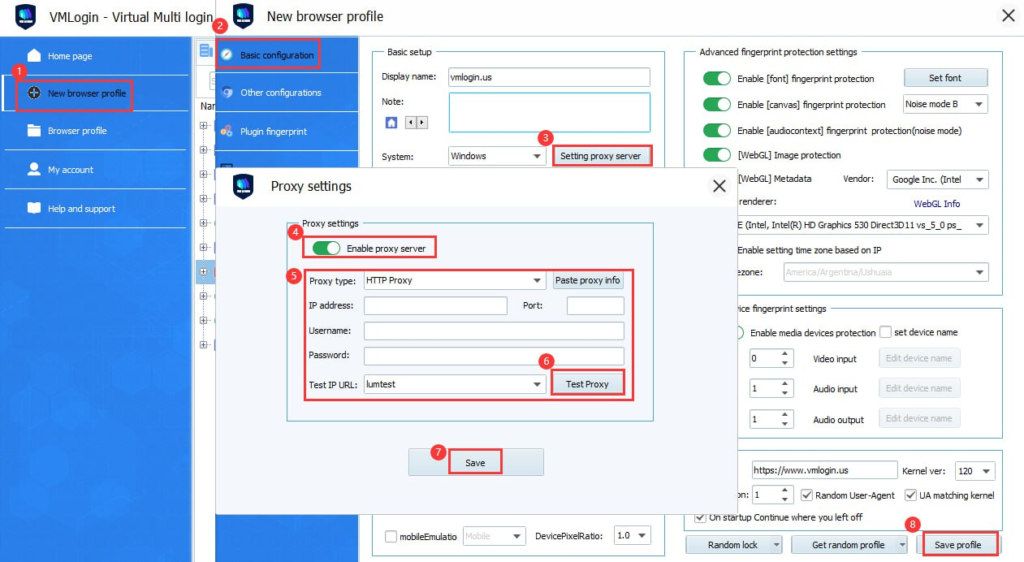
Now you can start using the VMlogin browser profile with your proxy setup.
Top 5 posts

Yes, you heard it right. In this chapter of our blog, we will talk about how and why you should use proxies with Discord – your favorite messaging and streaming platform on the Web.